My notes for setting up Steam Deck remote game streaming using Sunshine and Moonlight and a custom EDID.
Sunshine is a game stream host running on my desktop (Fedora 43 KDE Desktop with an NVIDIA graphics card), and Moonlight is the client running on the Steam Deck. I decided to use Sunshine/Moonlight due to latency issues with Steam Remote Play.
Fedora KDE Desktop uses Wayland, which adds some complexity when trying to match the Steam Deck resolution and refresh rate. Since the Steam Deck is using a 16:10 aspect ratio (1280x800), when streaming from a 16:9 display, there will be black bars on the top and bottom of the screen.
With X11 you can use xrandr (wlroots based Wayland compositors can use wlr-randr) to specify a custom resolution and refresh rate (display mode). Under KDE with Wayland, kscreen-doctor only supports setting the display mode to one that is supported by the display. We can get around this by using a custom EDID, either with a dummy display dongle or using drm.edid_firmware to specify a custom EDID.
Setup Sunshine and Moonlight🔗
I set up Sunshine using the Fedora COPR. Then I set up Moonlight on my Steam Deck following this guide.
Testing Normal Streaming🔗
Confirm everything is working normally by streaming to the Steam Deck and seeing the 16:9 aspect ratio.
Custom EDID🔗
Custom EDIDs should be safe, but I'm not responsible for your hardware.
- Plug the monitor into a Windows machine and use Custom Resolution Utility. On Linux, wxEDID might work to edit the EDID, but CRU was easier to use.
- Add a new
Standard Resolutionof1920x1200(the native resolution of1280x800also works, but I got better results with1920x1200) and a refresh rate of90for the OLED Steam Deck or60for the LCD version. - Export the modified EDID from Custom Resolution Utility and transfer it to Linux.
- Save that modified EDID to
/usr/lib/firmware/edid/custom-edid.bin - Use
kscreen-doctor -oto get the primary display port name and current display mode. - Add the kernel argument
sudo grubby --update-kernel=ALL --args="drm.edid_firmware=<port-name>:edid/custom-edid.bin", replacing<port-name>with the port from the previous step (it should beDP-XorHDMI-A-X)
Update Sunshine Application Settings🔗
- Set up a new application
- Set the Do Command to
kscreen-doctor output.<port-name>.mode.<resolution>@<refresh-rate>, replacing<resolution>and<refresh-rate>from the above Step 2. - Set the Undo Command to
kscreen-doctor output.<port-name>.mode.<current-mode>, replacing<port-name>and<current-mode>from the above Step 5. - (Optional) If you want Steam Big Picture to close when you stop streaming, add a new Undo Command
setsid steam steam://close/bigpicture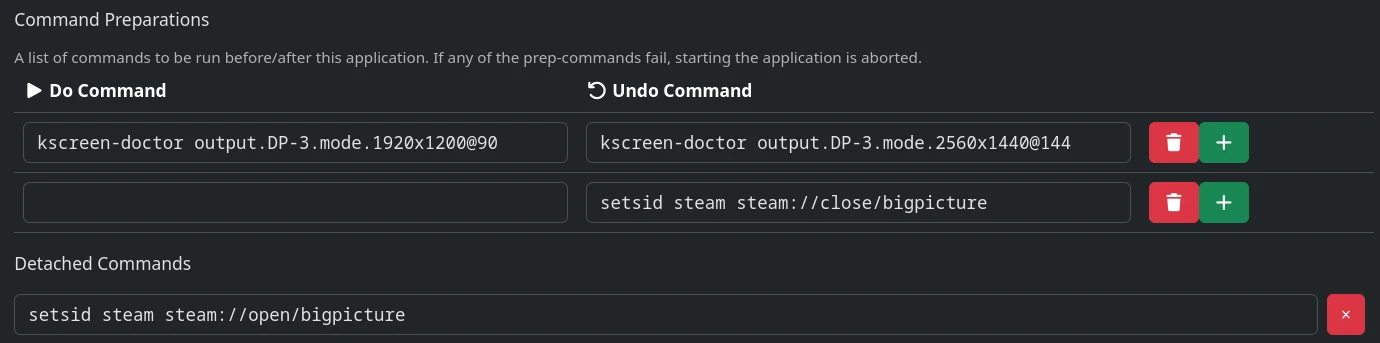
- Set the Do Command to
Reboot and Test🔗
Reboot and test streaming; it should now be in the 16:10 aspect ratio (your monitor will turn off due to an unsupported mode).